Get started with Lis Novel
You can draft and organize a novel without connecting an AI provider. Your writing is stored locally in the app's profile. AI features use a connection you configure separately.
Create a novel
- Complete license activation if the app asks for it.
- Open Novels and choose Create Novel.
- Enter a title and, if wanted, an author or pen name.
- Choose the novel's language. A writing language does not change the app's interface language or automatically select every spellcheck setting.
- Choose a structure: Acts + Chapters + Scenes, Chapters + Scenes, or Scenes only.
- Select Create Novel to save it and open the manuscript. Later, reopen it from its card in the novel list.
Open the novel's Settings → Writing to choose its tense and default point of view. Those prose settings are separate from the creation form.
Choose a structure that matches how you plan to organize the book. You can change it later, but simplifying an existing hierarchy flattens its groups. Read structure changes first.
See Sample Novel opens an editable example. Opening it again reuses the imported sample rather than creating another copy.
Write your first scene
- If the manuscript is empty, choose New Act, then New Chapter in a full structure. In simpler modes, start at the first visible level. You can also continue in a scene that already exists.
- Choose New Scene.
- Click the scene's manuscript area and type. Use paragraph breaks normally, or type
/to see block commands. - Add a subtitle or summary in the Outline when you need a short description of the scene.
Edits save automatically. Watch the saving indicator, especially before leaving the app. Saving, undo, and revisions explains pending changes and errors.
Find your way around
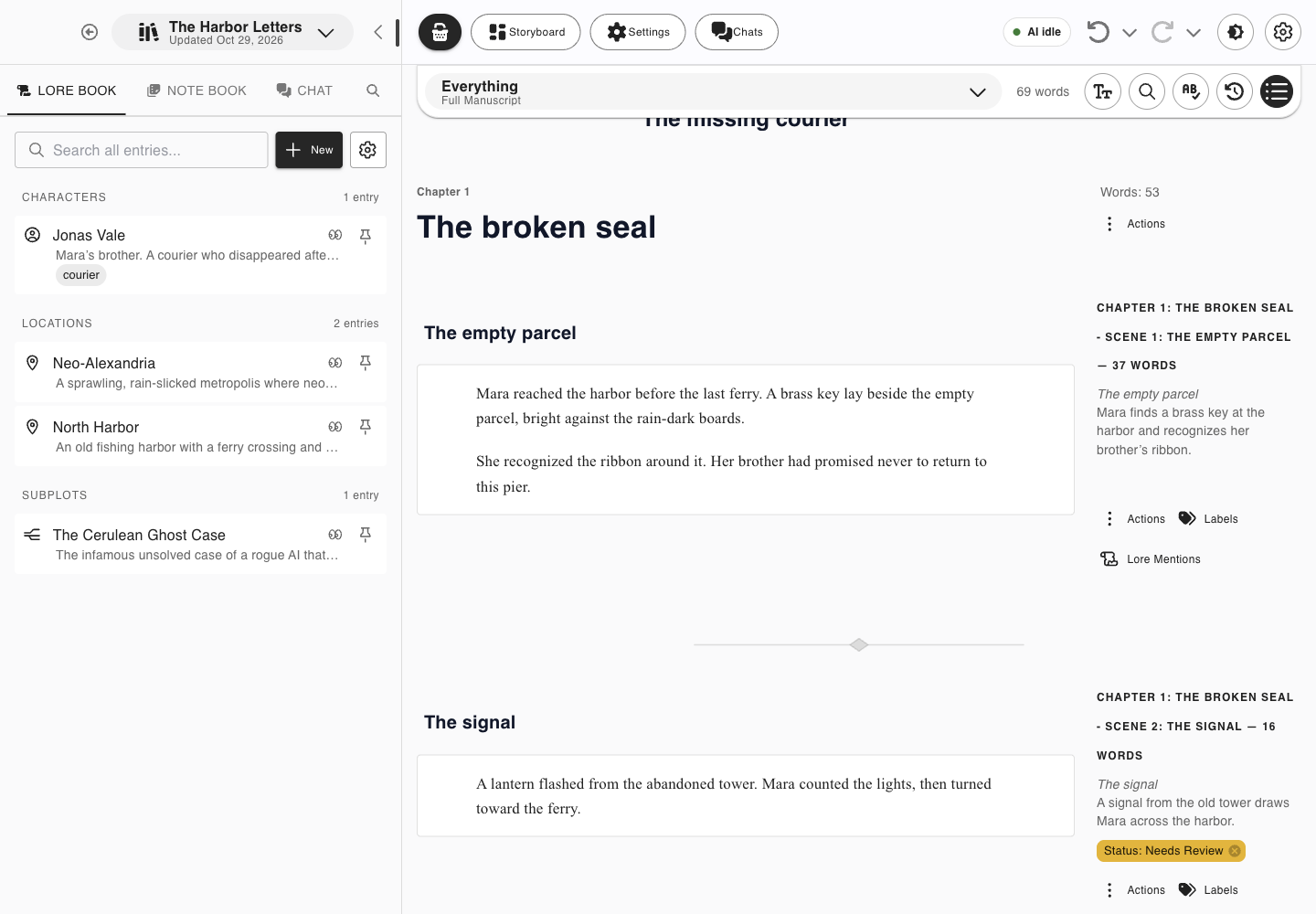
The manuscript is the place to write prose. The Outline sidebar shows the structure and scene summaries. Lore Book holds story facts; Note Book holds your separate working notes. Search finds Notes, Lore, and Chats for the current novel.
Use the novel view selector to work with the full manuscript or a smaller act, chapter, or scene. Storyboard gives you a planning view of the structure and summaries. Chats opens the novel's conversations. Novel settings contain Meta, Writing, Spellcheck, Labels, and Export & Print.
Reopen an existing novel from its card. Remember where I left off in the manuscript's Format dialog controls whether Lis Novel returns to a saved view position.
Choose a next step
- Organize the manuscript and add POV or labels.
- Create Lore for your characters and places, or make a Note.
- Set up writing checks.
- Export a draft.
- For optional AI help, connect a provider and try a Scene Beat. Generated novel outlines are a separate planning workflow.